Don't Panic
In this chapter, we’ll cover some basic concepts about revision history, branches, and one of the most basic Git commands that provides information on the current state of the repository at any given time.
Tree Mentality branches
Throughout this first part, the concept of “branch” will appear multiple times. It will be explained in depth later, but for now, let’s introduce it in general terms to aid understanding.
In Git, all the changes we make are added sequentially to the version history, but we always work on a branch; branches can be thought of as lines of work. If we never create new branches, we will always be working on the main branch.
Why Work on Branches?
Working with branches allows us to make changes to our codebase without affecting the main branch or the work that other team members are doing. Additionally, it helps group all changes related to the same feature into a single change in the main branch.
This is made possible by merging branches; once we’re done working on a branch, we can merge it and bring its changes into another branch, such as the main branch. After merging, we may consider the branch unnecessary and delete it.
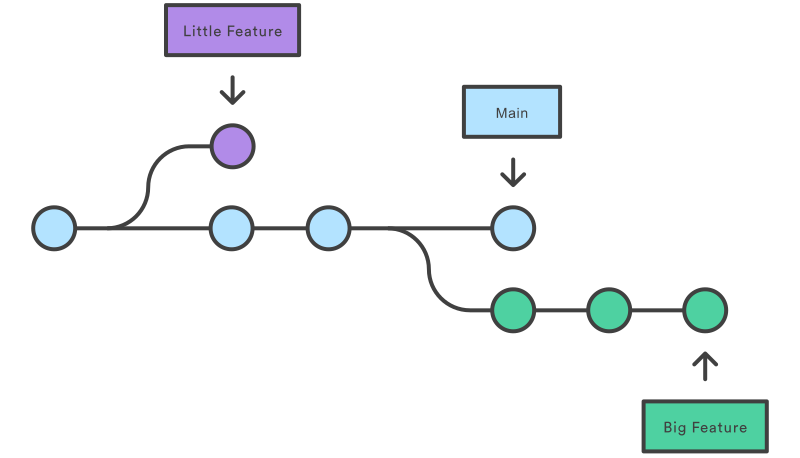
When we create a new branch, it starts from the point we are currently at. This point will serve as a reference when merging changes with the source or parent branch.
Typically, each developer makes targeted changes on different branches, with short life cycles, which are gradually merged into one of the main branches. This allows all branches to be created from a common point, enabling each person to make necessary changes without affecting others, and to unify those changes as branches are merged.
What’s Going On?! git status
If you’re ever unsure about the current state of your local repository or branch, what files you’ve modified, or which branch you’re on, you can always rely on the git status command.
This command provides information about the current branch you’re on, all modified files, their status, the status of a branch merge, and more.
git statusOn branch dont-panicYour branch is up to date with 'origin/dont-panic'.
Changes not staged for commit: (use "git add <file>..." to update what will be committed) (use "git restore <file>..." to discard changes in working directory) modified: src/content/docs/1-first-steps/0-dont-panic.mdx
no changes added to commit (use "git add" and/or "git commit -a")If you’re unsure about the state of your local repository, remember to use this command—it’s invaluable.
Don’t Be Afraid
Most problems that may arise with Git are easily resolved, so don’t worry. By learning to use Git commands, you’ll always know what you’re doing. Even if you later choose to use a visual solution, learning the basics will help you understand what’s happening in the background and avoid mistakes.
Here are a few ‘tips’ to keep calm:
- If you’re unsure about a change you’re going to make, you can create as many branches as you need, and your changes won’t affect the source branch.
- Remember that it’s a distributed system. If you accidentally delete or break something in your local repository, you can recover it as long as it exists in the remote repository.
- When in doubt, create a branch, make a commit, and push it to the remote repository. Now you can experiment freely and have a safe copy of your changes.
- Later on, we’ll cover how to work with branches or modify the version history, which will build your confidence and help you learn to handle various situations.
Keep Reading
- Branch overview on git-scm.com.
- Using branches on atalassion.com.